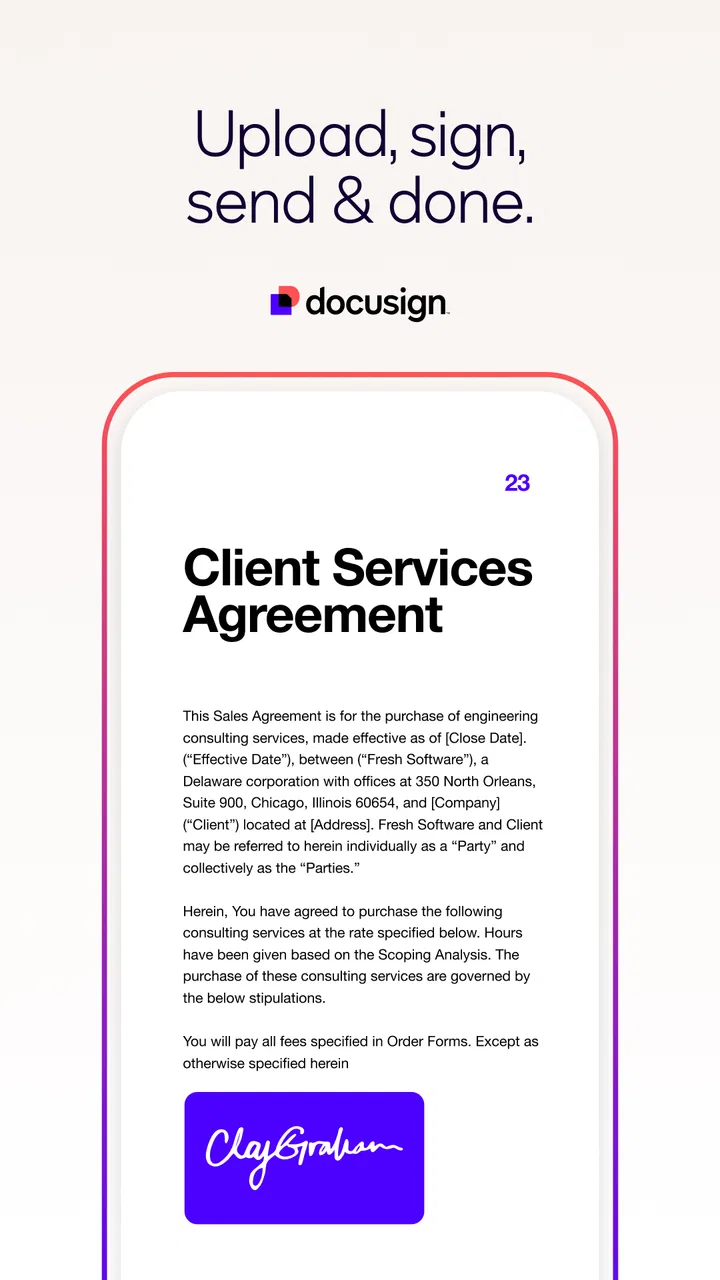
Docusign - Upload & Sign Docs
- 4.8
- Rating
- 10.00M
- Installs
- Free
- Price

 Analysis by App-foxy
When I need a document signed without turning it into a printing, scanning, and emailing project, Docusign is the kind of productivity app I reach for first. Its main job is focused: move a document through an electronic signature workflow from a phone or tablet. That sounds simple, but the practical benefit is considerable when a form arrives while I am away from my desk or when another person needs to sign before work can continue.
Developed by Docusign, this free app is aimed at everyday document handling rather than creative writing or general file management. I see it as a useful bridge between a document sitting in my inbox and a completed agreement that can be sent onward. It is available to everyone as an age-rated app, and its broad adoption—more than ten million installs and an average rating of 4.5 from roughly 156 thousand ratings—matches my impression that it has become a familiar option for electronic signatures.
The important point is that this is not merely a digital pen placed on top of a PDF. The useful capability is the ability to prepare, fill, sign, and send a document as part of one deliberate process. In my experience, that reduces the number of loose steps where mistakes normally happen, especially when several fields or more than one signer are involved.
You May Also Like

 Blood Strike: 2.5 Anniversary
Blood Strike’s Loadouts Turn Every Drop Into a Tactical Gamble
A close look at Blood Strike’s custom loadouts: how fast access to signature weapons reshapes its battle royale rhythm, rewards preparation, and narrows the gap between fights.

 Pandora - Music & Podcasts
Pandora’s Music Is Easy to Start, but Harder to Recover
Pandora’s strength is its low-effort path from a seed to a station. Its weak spot is how much confidence it asks you to place in connection, setup, and quiet recovery.

 8 Ball Pool
 Is Built on Rivalries, Rematches, and Routine
A close look at the rivalries, rematches, shared routines, and unanswered safety questions that turn a quick pool match into a persistent mobile community.

 Samsung Music
’s Quiet Strength Is Playing What You Already Own
Its reach comes less from spectacle than from dependable access to a personal library. That simplicity is both the app’s strongest retention engine and its ceiling.

 AccuWeather: Weather Radar
AccuWeather Review: A Quick, Clear Forecast for Everyday Decisions
For everyday plans, the best forecast is the one you can understand quickly. AccuWeather makes rain timing, radar, and local conditions easy to act on, with a few trade-offs.

 Hill Climb Racing
Why Hill Climb Racing Still Turns Crashes Into One More Run
A tiny car, a bumpy hill and one more upgrade: Hill Climb Racing keeps resurfacing because its simple chaos makes every near-miss feel personal.
More From Our News Desk



Why the signing workflow matters more than the signature itself
A signature is only one small part of finishing paperwork. Before signing, I may need to enter a name, date, address, initials, or another required response. After signing, the document has to reach the right person, and I need confidence that I am working on the intended version. Docusign’s value comes from bringing those actions into the same workflow instead of making me jump between a document viewer, a separate editor, a scanner, and an email app.
The difference is especially noticeable with forms that look straightforward but contain several places to complete. On a phone, manually zooming around a PDF and trying to remember which fields I have already handled is tiring. A signing-focused workflow gives the task a clearer purpose: open the document, identify what needs attention, complete it, and send it on.
I also like the change in mindset. With a paper document, I tend to treat printing as the first step and signing as the final step. With this app, the document stays digital from beginning to end. That is more convenient for remote work, rental paperwork, service agreements, school forms, and other situations where the people involved may be in different places.
That convenience does not mean every document becomes effortless. A badly formatted file can still be awkward to complete, and a small phone screen is not ideal for reviewing dense legal language. My advice is to use the app for the signing workflow, but not to confuse signing convenience with a replacement for reading the document carefully.
What I do before touching the signature field
My most useful habit is to review the whole document before entering anything. I check the names, dates, page order, and the sections that require action. This prevents a common mistake: reaching the signature box quickly and only later noticing that an earlier field was left blank or that the document is not the final version.
On a mobile device, I work in two passes. First, I skim every page to understand the document. Then I return to the fields and fill them in carefully. This takes a little longer than immediately signing, but it is much safer when the agreement has several pages. It also makes the app feel less like a rushed utility and more like a controlled document process.
For repeated paperwork, I find it helpful to keep the information I enter consistent. Names, dates, and contact details should match the document and the surrounding conversation. An electronic signature can make sending fast, but it cannot correct an incorrect address or a misunderstood clause.
How the app fits into a real day
Imagine receiving a service agreement while commuting. I can open the document on my iPhone or Android device, inspect the pages, complete the requested fields, add my signature, and send the finished paperwork without waiting to get home. The real advantage is not that each tap is revolutionary; it is that the entire interruption stays contained in one place.
That scenario also shows the main limitation. If the agreement contains complicated tables, small print, or information that deserves comparison with another document, I would rather use a larger screen first. I may still use Docusign to complete the final signature, but I would not choose a phone as my only review environment for an important contract.
The app is therefore strongest when the document is already understood and the remaining task is completion. It is less suitable when I am still negotiating terms, editing substantial text, or trying to compare multiple versions side by side.
A practical workflow for avoiding avoidable errors
I recommend preparing the document before starting the signing session. If someone sends several attachments, I identify the exact file that needs action instead of opening the first one that looks familiar. I also make sure I have enough uninterrupted time to check each page. A signature request may be quick, but rushing creates more trouble than the app can remove.
Once the document is open, I look for every required field rather than relying only on the most visible signature area. I fill in text and date fields first, then review them before adding the signature. This order is useful because the signature feels like a natural finishing point, while entering it early can create a false sense that the document is complete.
After sending, I keep the surrounding message or reference handy. If I later need to discuss the agreement, knowing which document I completed matters. This is a small organizational habit, but it makes electronic paperwork much easier to track than a collection of unnamed files and screenshots.
Where it beats the usual alternatives
The usual alternative is to print the document, write on it, scan it, and email the scan. That method still works, but it introduces hardware, extra time, and the risk of a blurry or incomplete scan. Docusign is clearly more convenient when the original file is already digital and the people involved are comfortable completing the process electronically.
Another alternative is using a general PDF editor. A PDF editor may be better when I need to rearrange pages, make broader annotations, or perform document-management tasks beyond signing. Docusign has a narrower purpose, and that narrowness is a strength when I want a guided signature task rather than a toolbox full of unrelated controls.
Emailing a document back and forth with a typed name can be faster in a casual situation, but it is not the same experience as using a dedicated signature workflow. I prefer Docusign when the document needs a clearer completion step and when the sender expects a formal electronic signing process.
On the other hand, people who only sign one simple document once in a while may find a general PDF viewer sufficient. The dedicated workflow becomes more valuable as the paperwork becomes recurring, involves multiple fields, or needs to move between several people.
The tradeoff between convenience and screen size
My biggest friction point is not the signing action itself; it is reviewing a full document on a phone. Zooming is manageable, but it can interrupt my understanding of the page. When a clause continues across pages or a table is compressed, I have to slow down and pay attention. That is a limitation of mobile document work, even when the app handles the signature process well.
I also would not recommend using it as a substitute for a word processor. If I need to rewrite paragraphs, negotiate language, or make extensive changes, I would use the appropriate editing tool first and return to Docusign when the document is ready for completion. Trying to force a signing app into an editing role is likely to make the task feel more complicated.
The free price makes trying the app easy, but the presence of in-app purchases ranging from $9.99 to $479.99 per item means users should pay attention to the plan or purchase screen before committing to paid functionality. For an occasional personal signature, I would begin with the free experience and only consider a paid option if my regular workflow genuinely requires it.
That pricing detail matters most for small teams and independent workers. A person signing a few forms is making a different decision from someone who sends documents regularly. I would not choose a plan based only on the promise of speed; I would first estimate how often I prepare documents, how many people need to sign, and whether the workflow saves enough administrative effort to justify the cost.
Who gets the most from it
I think the strongest audience is anyone who regularly receives or sends agreements but does not want to depend on a desktop printer and scanner. Freelancers, landlords, consultants, small business owners, recruiters, and people handling household paperwork can all benefit when documents arrive unexpectedly or need a quick response.
It is also useful for people who travel or work across locations. Keeping the process on a mobile device means a signature request does not automatically become a task for later. That can shorten delays in ordinary situations such as approving a service, returning a completed form, or finishing an agreement while away from an office.
People who should skip it are those looking mainly for advanced document editing, detailed PDF layout control, or a full office suite. They may be happier with a broader PDF or office application and use a dedicated signing tool only when a formal workflow is needed. I would also hesitate to recommend a phone-first process to anyone who regularly reviews long, complex contracts; a larger display is simply more comfortable and safer for that job.
What the current app details mean for compatibility
The current version is 3.57.0, and the app supports devices running operating system version 9 or later. That makes it accessible to many users, although I would still check the operating system on an older phone before planning an urgent signing session. Compatibility is easy to overlook until a document arrives with a deadline.
The app has been available since January 11, 2012, which helps explain why it feels like a mature category-specific tool rather than a newly assembled document viewer. Its listing shows about 28 thousand written reviews, alongside the larger rating total, and that volume suggests a substantial user base with many different signing situations. I still judge it by my own workflow: popularity does not remove the need to inspect documents carefully.
Because it is rated for Everyone, it is approachable for general household and work use. That age rating should not be mistaken for a statement about the complexity of the documents being signed. A simple form and a legally significant agreement can pass through the same app, so the responsibility for understanding the content remains with me.
Small habits that make the experience better
One useful habit is to separate “review” from “sign.” I read the document without touching the signature field, then return to complete the required entries. This avoids treating the signature as a shortcut through the document and makes it easier to notice missing information.
Another is to avoid signing while distracted. A mobile workflow is convenient enough that I might be tempted to finish a request between other tasks, but interruptions are exactly when names, dates, or unchecked fields get missed. I prefer to wait until I can give the document a few focused minutes.
Finally, I use the app because it reduces physical steps, not because it removes judgment. If the sender changes the document, if the request seems unexpected, or if the terms are unclear, I pause and resolve that issue before signing. The best electronic-signature workflow is still one that begins with a document I recognize and understand.
My recommendation after using it
Docusign is a focused productivity app that earns its place when the problem is not writing a document but getting a prepared document completed and sent. I like it most for ordinary, time-sensitive paperwork where printing would be an unnecessary obstacle. The workflow is clearer than passing a scanned page through email, and it is more purpose-built than opening a general PDF editor just to add a signature.
I would recommend starting with the free version if your needs are occasional. Before paying for anything, consider whether you are a casual signer or someone who repeatedly prepares documents for other people. The in-app purchase range makes that distinction important, and the right choice depends on the scale of your workflow rather than on the app’s download count.
My final view is balanced: this is not the best tool for editing, negotiating, or deeply reviewing complicated documents on a small screen. It is, however, a practical answer to a very specific nuisance. When a digital form needs fields completed, a signature added, and the finished document sent without a printer nearby, Docusign turns a scattered chore into a manageable mobile task. Its real strength is the complete signing workflow, not simply the act of drawing a signature.
FAQs for Docusign - Upload & Sign Docs
01What is DocuSign and how does it work?
DocuSign is an app that allows you to upload, sign, and manage documents digitally. It streamlines the process of obtaining signatures by enabling users to electronically sign documents from any device. Simply upload a document, add recipients, and send it for signing. It eliminates the need for physical paperwork, making the process faster and more efficient.
02Is DocuSign secure for handling sensitive documents?
Yes, DocuSign uses industry-standard security protocols to protect your documents. It employs encryption to safeguard data and has stringent access controls. Additionally, DocuSign complies with various international security standards and regulations, ensuring that your documents remain confidential and secure throughout the signing process.
03Can I use DocuSign on multiple devices?
DocuSign is accessible on multiple platforms, including Android, iOS, and web browsers. Your account synchronizes across devices, allowing you to start a document signing process on one device and complete it on another. This flexibility is ideal for professionals who need to manage documents on the go.
04What types of documents can I sign with DocuSign?
DocuSign supports a wide range of document types, including PDFs, Word documents, Excel spreadsheets, and more. The app is versatile, catering to various industries and document needs, such as contracts, agreements, and forms. This compatibility makes DocuSign a valuable tool for businesses and individuals alike.
05Is there a cost associated with using DocuSign?
DocuSign offers a range of pricing plans to suit different needs, including a free plan with basic features. For more advanced functionalities, such as additional document storage and advanced fields, there are paid subscription plans. It's advisable to review the pricing options to find the best fit for your requirements.
Pros
- Easy to use interface for quick document signing.
- Supports a wide range of document formats.
- Secure encryption for sensitive data protection.
- Integrates well with cloud storage services.
- Offers a free trial for new users.
Cons
- Premium features require a subscription.
- Occasional sync issues with cloud services.
- Limited offline functionality.
- Some features can be complex for beginners.
- Mobile app lacks some desktop features.

Docusign - Upload & Sign Docs
Gallery